Transfer
Share files securely. Stay in control.
Flowtig Transfer helps organisations share files securely with customers, colleagues and business partners.
Instead of relying on third-party file sharing services, Transfer provides professional download pages with configurable access controls, download tracking and complete activity history—all fully integrated into the Flowtig platform.
Whether you're delivering invoices, sharing project files or exchanging large documents, Transfer keeps every file transfer organised, secure and transparent.
Why use Transfer?
Business files often need to be shared outside your organisation.
Typical questions include:
- How can I send large files securely?
- How long should this download remain available?
- Has the customer already downloaded the files?
- Can I protect downloads with a password?
- Can I revoke access later?
Transfer answers these questions while keeping file sharing simple and professional.
Overview
With Transfer you can:
- Upload files of any size
- Create public download pages
- Protect transfers with passwords
- Limit downloads
- Configure expiration dates
- Monitor downloads and views
- Preview supported file types
- Review complete activity history
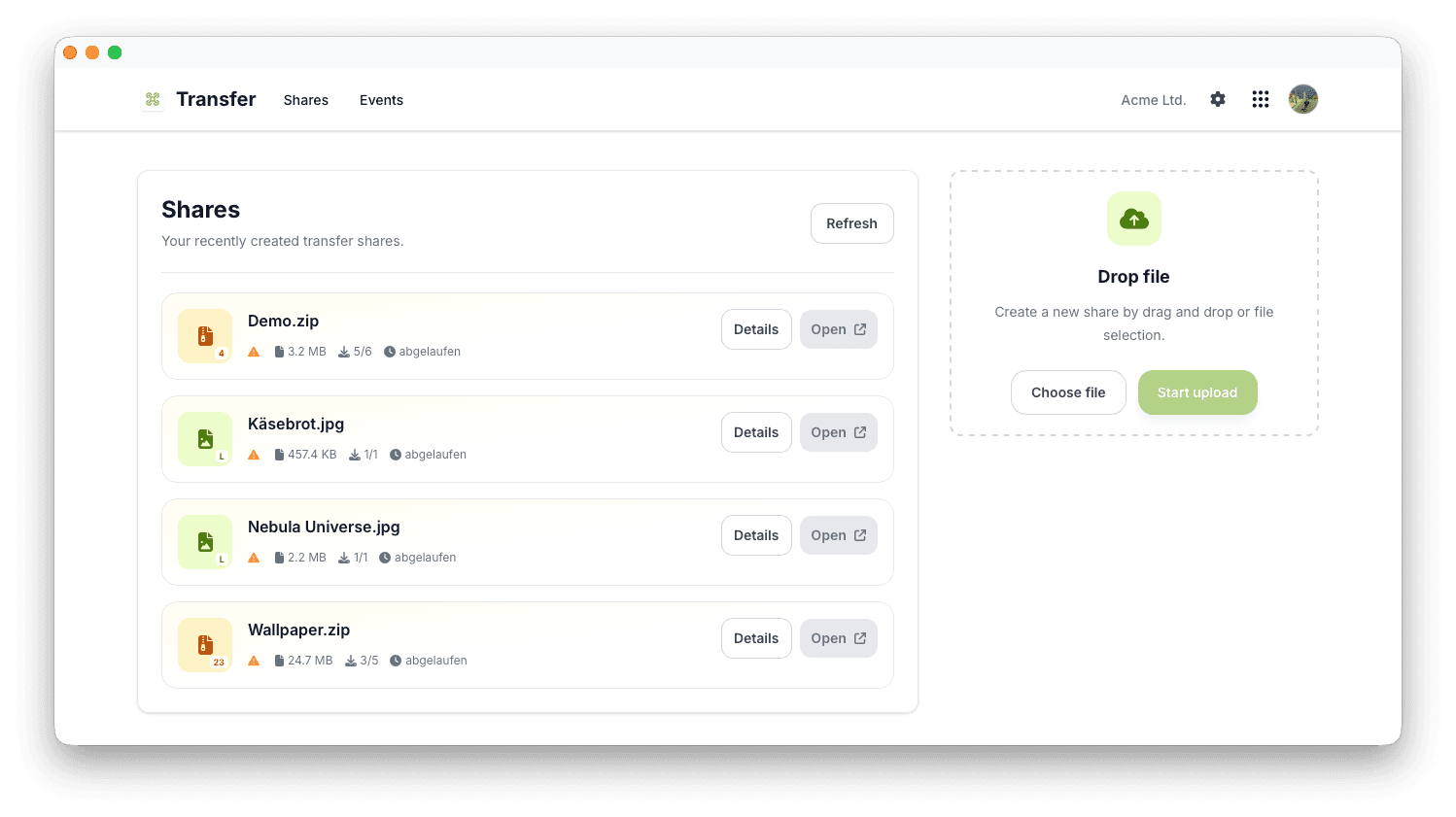
Creating a Transfer
Creating a transfer only takes a few moments.
- Upload one or more files.
- Add an optional title and description.
- Configure security settings.
- Share the generated download link.
Recipients immediately receive access to a clean and professional download page without requiring a Flowtig account.
Uploading Files
Transfer supports both individual files and complete file collections.
Typical examples include:
- PDF documents
- Images
- ZIP archives
- Office documents
- CAD drawings
- Videos
Multiple files can easily be grouped into a single transfer.
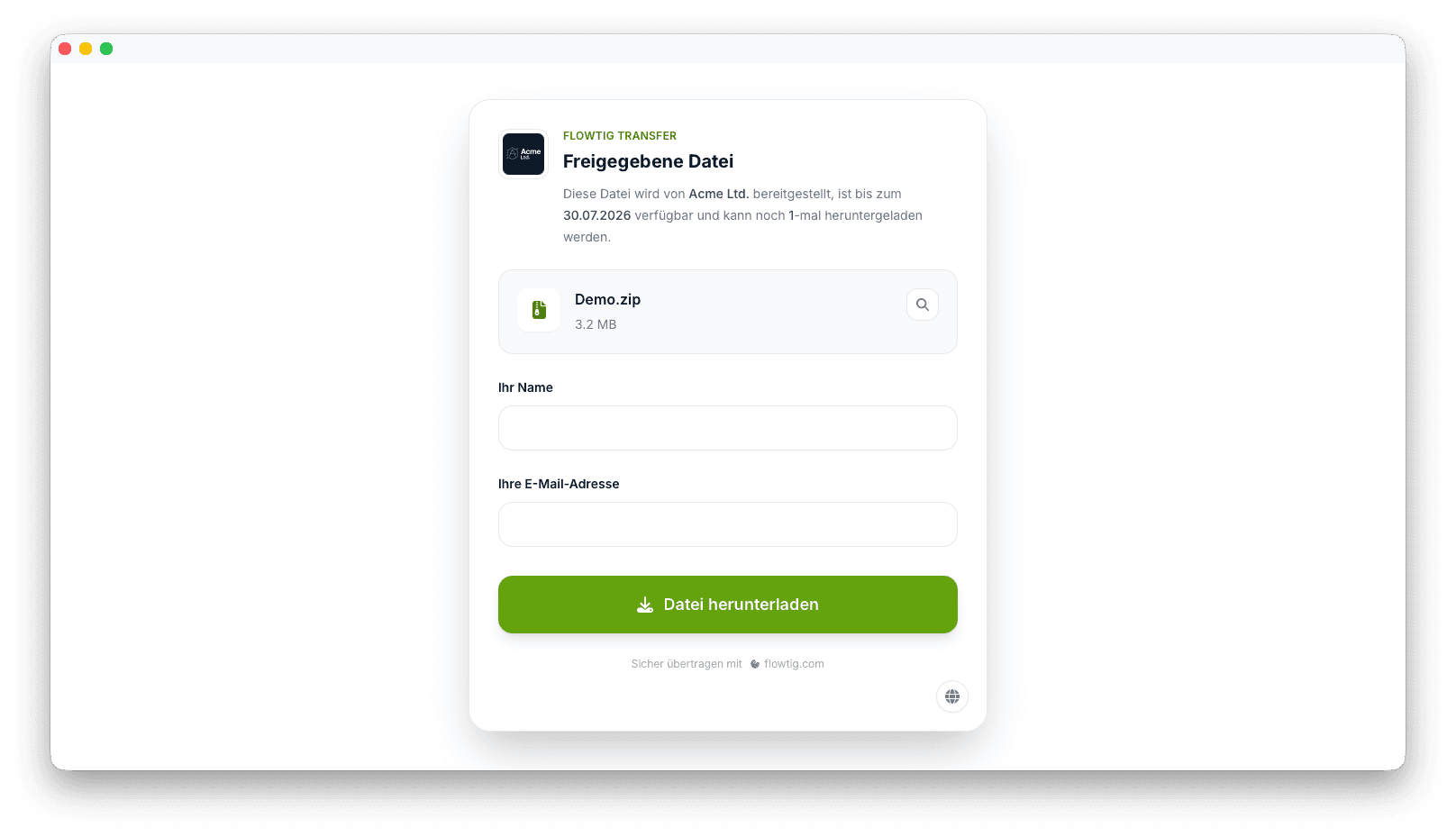
Download Pages
Every transfer receives its own dedicated download page.
Recipients can:
- View transfer information
- Preview supported files
- Download individual files
- Download complete archives
The download experience is designed to be simple, modern and accessible from any device.
Access Control
Transfer provides multiple options for controlling access.
Available options include:
- Password protection
- Expiration dates
- Download limits
- Manual deactivation
These controls help ensure files remain available only for as long as necessary.
File Preview
Transfer automatically analyses uploaded files.
Depending on the file type, recipients may preview content before downloading.
Supported preview types include:
- Images
- ZIP archive contents
Previews allow recipients to verify file contents before downloading.
Activity History
Every transfer maintains a complete activity history.
Typical events include:
- Transfer created
- Download page opened
- File downloaded
- Transfer expired
- Transfer disabled
This creates full transparency for every shared file.
Notifications
Transfer integrates with Flowtig's notification system.
Notifications can inform users about events such as:
- Transfer expiration
- Successful downloads
- Newly created transfers
This allows teams to stay informed without constantly checking the application.
Permissions
Transfer uses Flowtig's central permission system.
Typical permissions include:
| Permission | Description |
|---|---|
| View transfers | Browse transfers |
| Create transfers | Upload new files |
| Edit transfers | Modify transfer settings |
| Delete transfers | Remove transfers |
| Manage downloads | Configure access restrictions |
Permissions can be assigned independently, ensuring organisations retain full control over shared files.
Best Practices
Integrations
Transfer integrates naturally with other Flowtig applications.
| App | Integration |
|---|---|
| Contacts | Customers and business partners |
| Invoices | Secure invoice delivery |
| Invoice Archive | Exchange invoice documents |
| Calendar | Scheduled file availability |
| Real Estate | Share brochures, floor plans and certificates |
As the Flowtig platform grows, additional integrations will become available.
Frequently Asked Questions
Can I share multiple files?
Yes.
Every transfer can contain one or many files.
Can transfers expire automatically?
Yes.
Expiration dates can be configured individually for every transfer.
Can downloads be limited?
Absolutely.
Transfer supports configurable download limits for every shared link.
Can transfers be password protected?
Yes.
Password protection can be enabled before a transfer is shared.
Can recipients preview files?
Yes.
Supported file types such as images and ZIP archives can be previewed directly on the download page.
Typical Workflow
Upload Files
      │
      ▼
Configure Security
      │
      ▼
Share Download Link
      │
      ▼
Recipient Downloads Files
      │
      ▼
Review Activity History
See also
Transfer works particularly well together with:
Need help?
Need assistance with Transfer?
Learn more on the Flowtig website or contact our support team: